Configure Platform Authentication via Auth0
This document describes how to set up an app under your Auth0 account that Flowgear will use to authenticate users signing in to the Console. When configured, users that do not exist within your Auth0 account will not be able to sign in. Note that permissions for users are still managed within Flowgear.
Follow these steps to provide the required information to Flowgear when setting up your account.
Steps
-
Create an Auth0 account.
-
Once a Tenant has been created, navigate to the
Auth0 Dashboard. Create an Application of typeRegular Web Applications(Applications→Create Application). -
Update the
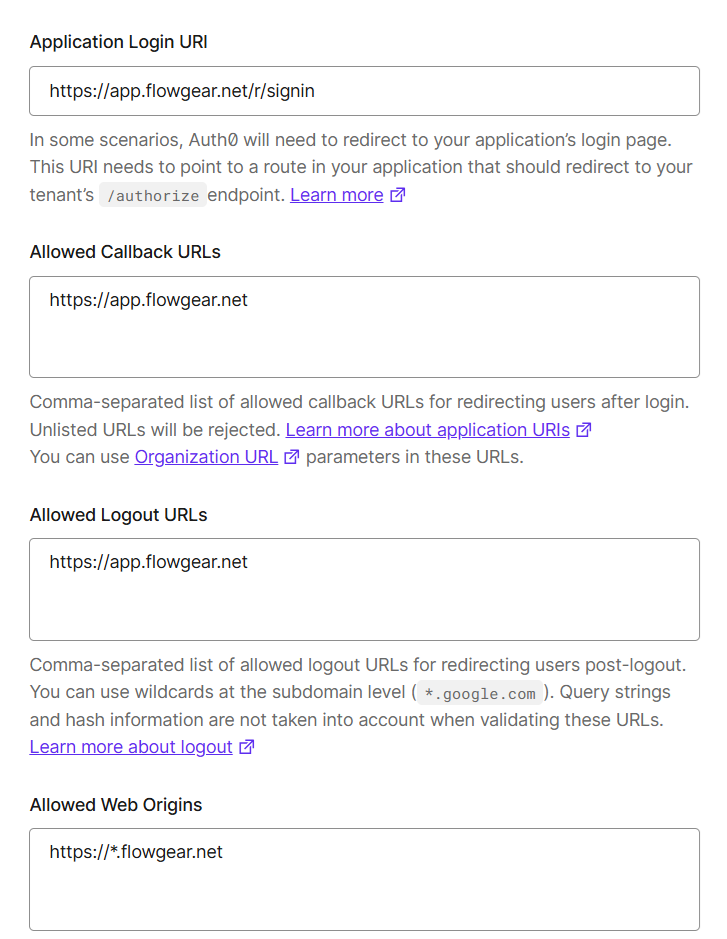
Application URIs Settings:- Set the
Application Login URItohttps://app.flowgear.net/r/signin. - Set the
Allowed Callback URLstohttps://app.flowgear.net. - Set the
Allowed Logout URLstohttps://app.flowgear.net. - Set the
Allowed Web Originstohttps://*.flowgear.net.
- Set the
-
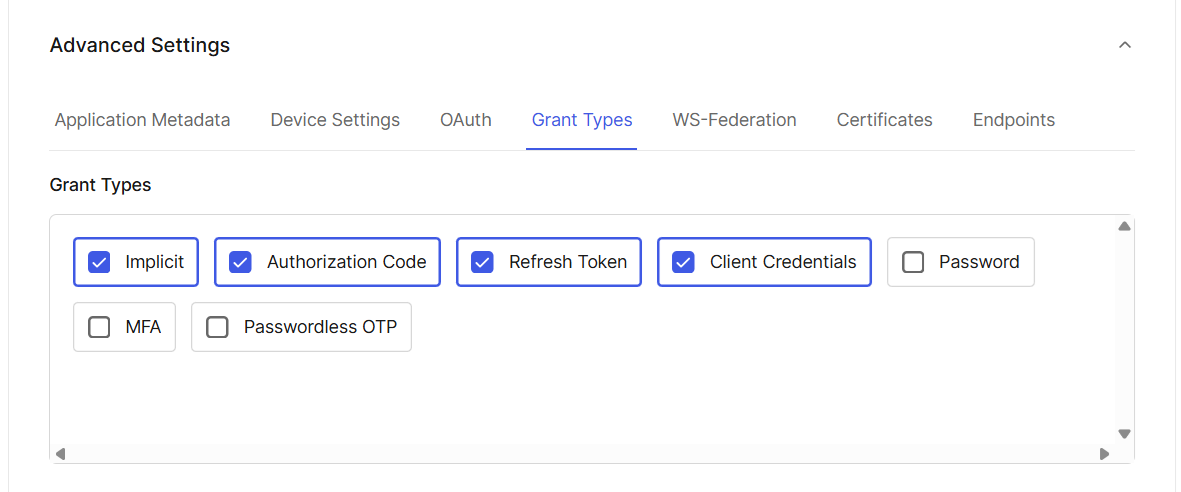
Ensure the following grant types are set in
Advanced Settings:ImplicitAuthorization CodeRefresh TokenClient Credentials
-
Ensure
Application Authentication Methodis set toClient Secret (Post).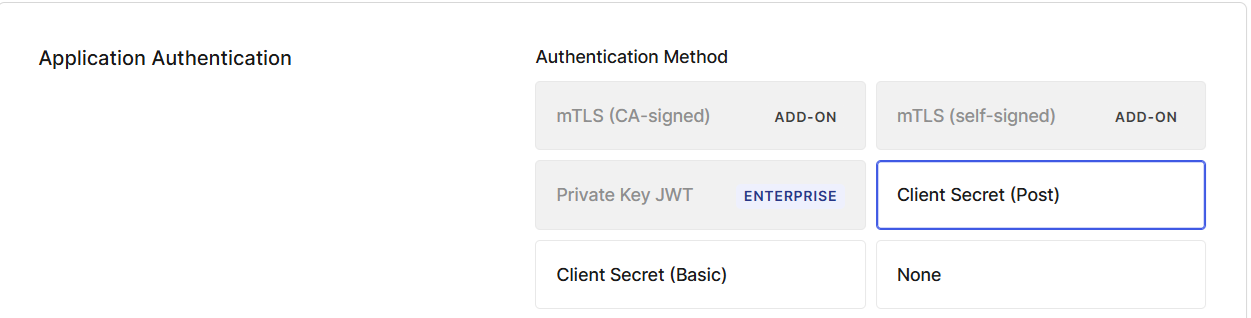
-
Create a new connection. If using a free account, a
Database Connectioncan be set up. Navigate toAuthentication→Database Connections→Create Database Connection. EnsureEmail Addressis set as one of the user identifier attributes. -
Add users as needed by navigating to
User Management→Users→Create User. -
In the previously created
Application, navigate to theConnectionstab and ensureUsername-Password Authentication Connectionis enabled. -
Provide the following details to Flowgear Support. This requires a restart in order to be applied:
- The
Auth0 Instance URLwhich is the base URL for the Auth0 Tenant. Can be found in theApplication→Advanced→Endpointssection. - The
Client IDandClient Secret(found in theSettingsfor the createdApplication), so that Auth0 can be configured for your Tenant.
- The
See also
Configure Platform Authentication via Microsoft ID
Configure Platform Authentication via Google ID