Azure Active Directory v1
Interact with Microsoft Entra ID (Azure Active Directory) via Microsoft Graph.
Revision History
1.0.0.0 Initial release.
1.0.0.2 Added group/device listing and user update actions.
Properties
Connection
Type: Connection Input
The Node connection profile used to authenticate with Microsoft Graph using a certificate.
TenantId
Type: String
The Tenant ID for your Microsoft Entra ID directory.
ClientId
Type: String
The Application (client) ID of the App registration in Azure.
Base64Cert
Type: Multiline Text
Base64-encoded .pfx certificate content.
CertPassword
Type: Password
Password for the .pfx certificate.
Action
Type: List Input
The operation to perform.
GetUsersDetails - Retrieve details for a user identified by Key.
GetUsersManager - Retrieve the manager for a user identified by Key.
ListGroups - List groups in the tenant.
ListGroupsMembers - List members of the group identified by Key.
ListUsersDevices - List devices owned by the user identified by Key.
UpdateUsersDetails - Update the user identified by Key using JSON from Data.
Key
Type: String Input
Identifier used by action-specific operations:
User principal nameorObject IDfor user actions.Object IDfor group member listing.
Data
Type: JSON Input/Output
- For
UpdateUsersDetails: Provide a JSON payload matching Microsoft GraphUserfields to patch.- Use Graph property names in JSON (for example
surname,GivenName,DisplayName). - Example:
{
  "surname": "Doe"
}
- Use Graph property names in JSON (for example
- For all actions: Returns the JSON response body.
- For
UpdateUsersDetails, a successful PATCH returns204 No Content; this is expected to appear asnullinData.
Remarks
Configuring the Node
This Node uses Microsoft Graph with application authentication via a client certificate.
-
Get your Tenant ID
- Sign in to Azure Portal.
- Open
Microsoft Entra ID. - Copy the
Tenant IDfromOverview.
-
Register an Application
- In
Microsoft Entra ID, openApp registrations. - Create a new registration (or use an existing one) and copy its
Application (client) ID. - Redirect URIs are not required for this Node's certificate-based flow.
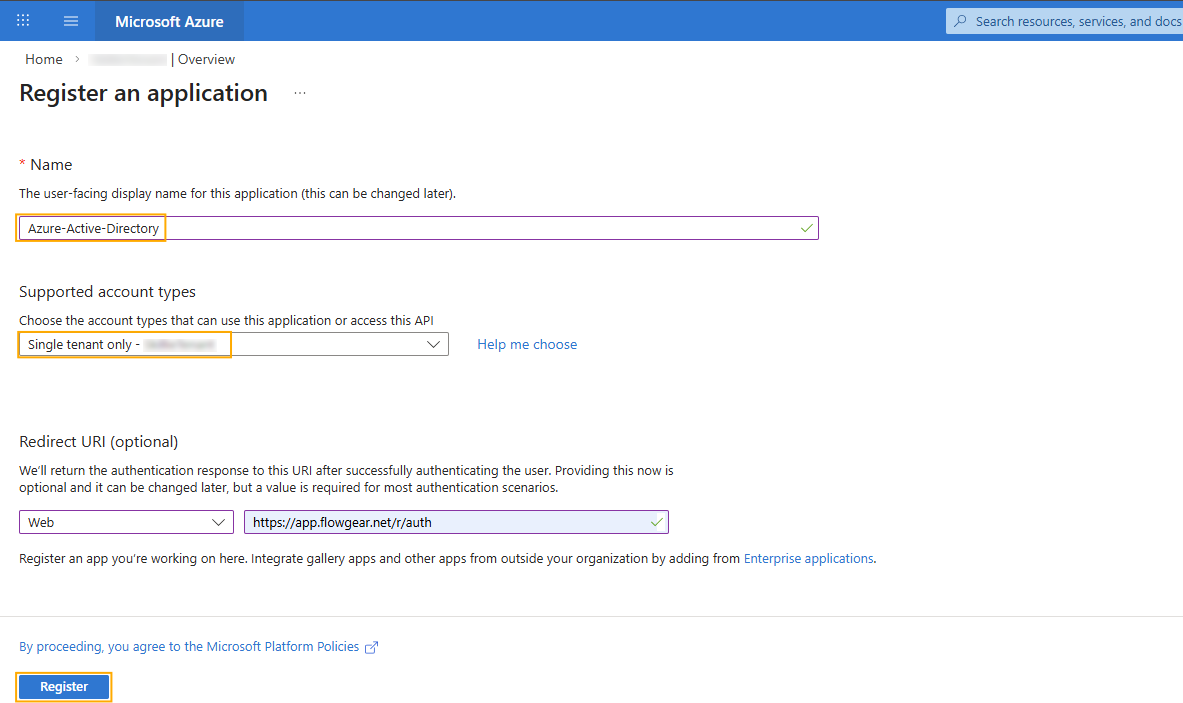
- In
-
Upload a Certificate
- On the Workflow Design Canvas, use the Create Certificate node to generate the public certificate for the App registration.
- In the App registration, open
Certificates & secrets. - Upload the public certificate (
.cer) that matches the private key in your.pfx.
-
Configure Microsoft Graph Application Permissions
- Open
API permissions>Add a permission. - Select
Microsoft Graph>Application permissions. - Add permissions required by your actions, for example:
User.Read.AllforGetUsersDetailsandGetUsersManager.Group.Read.AllforListGroupsandListGroupsMembers.Device.Read.AllforListUsersDevices.User.ReadWrite.Allfor generalUpdateUsersDetailsprofile updates (for example,surname).
- In app-only flows, write operations can also require a Microsoft Entra role on the app's service principal. For user updates, assign at least
User Administratorwhere required. - Click
Grant admin consentfor the tenant.
- Open
-
Populate Flowgear Node Connection
TenantId: the Entra tenant ID.ClientId: the app registration client ID.Base64Cert: Base64-encoded content of the.pfxcertificate.CertPassword: password for the.pfxcertificate.
Action-specific custom properties
The following optional custom properties are used by list actions (ListGroups, ListGroupsMembers, ListUsersDevices) and map to Microsoft Graph query options:
Count(Boolean)Expand(String array)Filter(String)Orderby(String array)Search(String)Select(String array)Skip(Integer)Top(Integer)
Troubleshooting
Insufficient privileges on UpdateUsersDetails
- Confirm
User.ReadWrite.Allis granted as anApplicationpermission (not delegated). - Confirm tenant-wide admin consent has been granted after adding/changing permissions.
- Confirm the app service principal has an appropriate Entra role assignment (for example
User Administrator) if required by the target update. - Use user
Object IDas theKeywhen possible (instead of UPN), especially for guest users. - Send only writable properties in
Data. Read-only properties from a full user payload should be omitted.
Checking Update visibility
- After
UpdateUsersDetails, changes can take time to become visible in Microsoft Entra ID and Microsoft Graph responses. - If you call
GetUsersDetailsimmediately after an update, recently changed fields may not appear right away; wait briefly and query again. - Keep update payloads minimal and include only fields you intend to change.
- Avoid read-only or system-managed fields in the JSON payload when patching users.