Connect Flowgear MCP to Claude
This document describes the steps to connect a Flowgear MCP Server to Claude.
Requirements
- Paid plan for Claude - Custom connectors using a remote MCP Server are available on Claude Web and Claude Desktop (and Claude Mobile for previously-added connectors) for users on Pro, Max, Team, and Enterprise plans. Please note that this feature is currently in beta.
Steps
-
Copy and verify the MCP Server URL - In the Flowgear Console, open
MCPfrom the main navigation. In theWorkflow MCPsection, choose the Environment first, then copy theServer URLandRecommended nametogether. Both belong to the selected Environment. Open the Server URL,https://<environment-hostname>/mcp, in a browser and confirm that Flowgear displays its Workflow MCP server guidance. If it does not, see how to Verify the MCP Endpoint before you continue. -
Sign in to Claude.
-
Navigate to Connector Settings - Navigate to the settings page by clicking on your profile icon and selecting
Settingsfrom the dropdown menu. Once there, click on theConnectorssection in the sidebar. This will display your currently configured connectors and provide options to add new ones. If you are on a team plan you will need to contact your admin to add the connector. The admin should navigate toAdmin Settings. Once there, click on theConnectorssection in the sidebar. This will display your currently configured connectors and provide options to add new ones. -
Add a Custom Connector - Within the
Connectorssection, click theAdd custom connectorbutton to begin the connection process. A dialog will appear prompting you for a connector name and the remote MCP Server URL. Enter theRecommended nameyou copied in Step 1 as the name. The name is a recommendation, and you can choose a different one, but the recommended name keeps each Flowgear connector distinguishable. For the URL, enter theServer URLyou copied in Step 1. It has the following structure:https://<environment-hostname>/mcp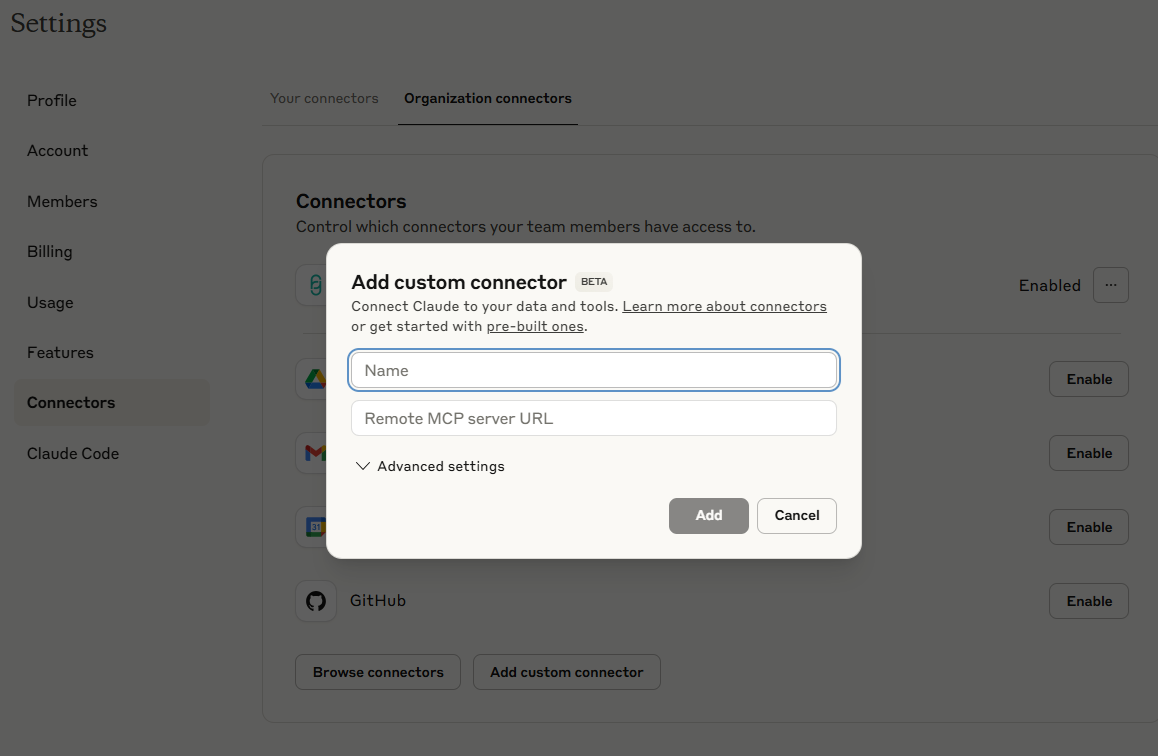
-
Connect the MCP server (Complete Authentication) - Follow the authentication prompts provided by the server.
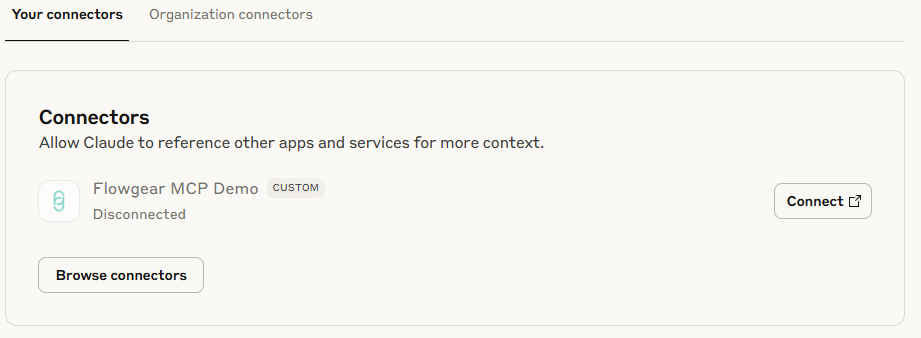
-
Open a new chat, click on the
Connectorsbutton, and confirm that your connected MCP Server is listed as a Connector under the name you entered in Step 4. Here it can be disabled per chat.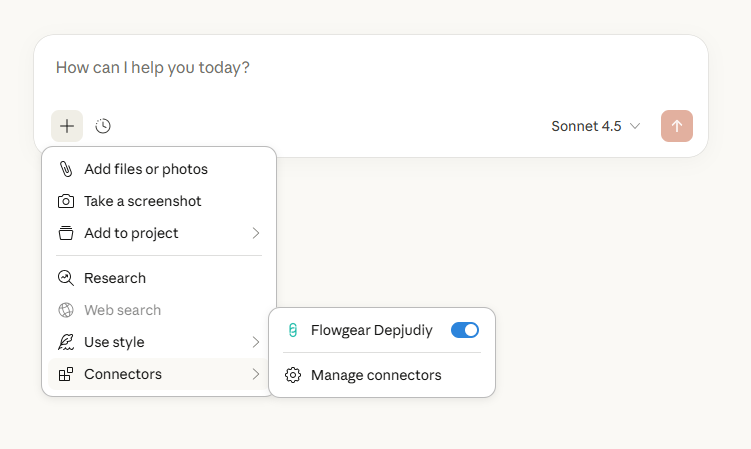
-
Configure Permissions for Allowed MCP Workflow Tools - Navigate back to the
Connector Settingsfrom Step 3, and click on theConnectorstab. Then, click onConfigure. This is where you can update whether Claude willAlways allow,Needs approval,BlockedorCustom. This will determine if explicit approval is needed to invoke a tool in a chat.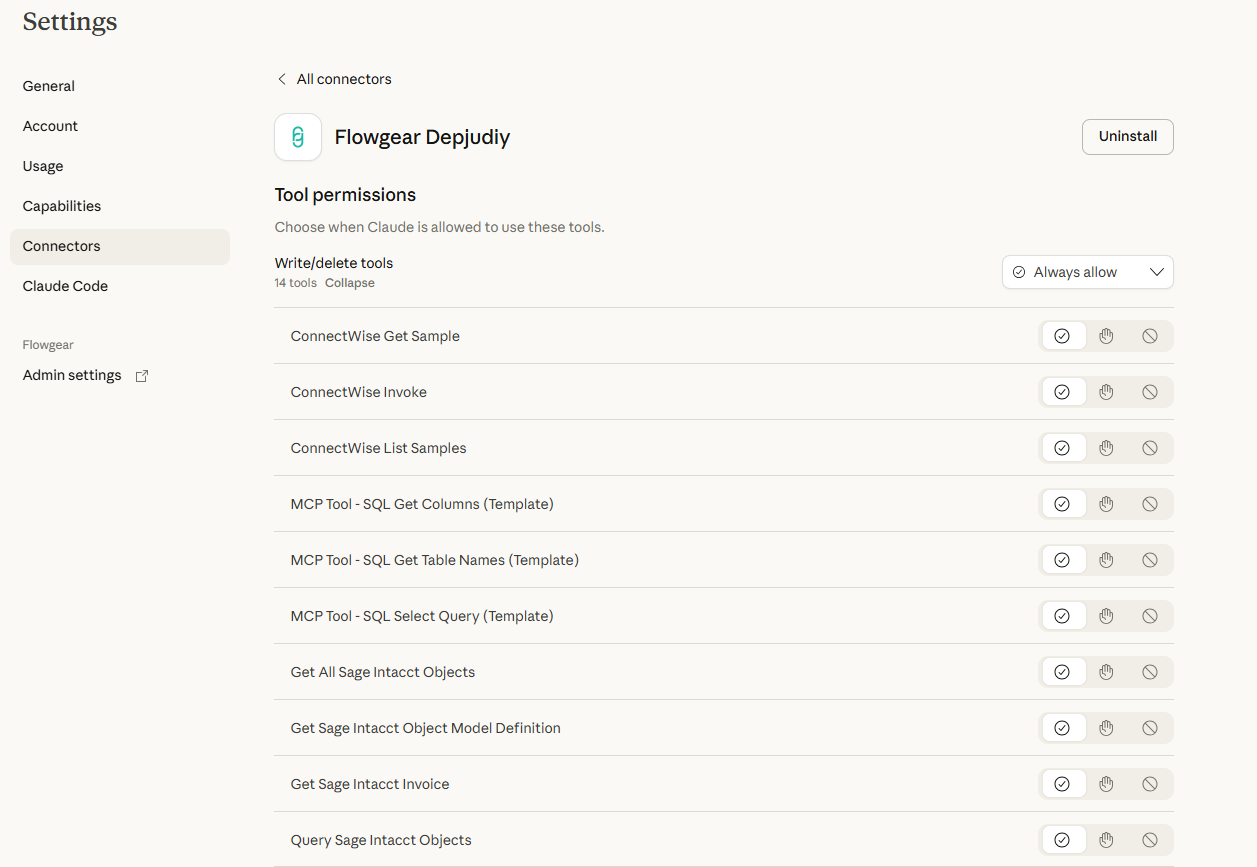
Now, you should have successfully connected Claude to your remote Flowgear MCP Server, and can explore its capabilities in your conversations. Try using the connected tools to automate tasks, access external data, or integrate with your existing Workflows.
You can connect several Flowgear MCP servers at the same time. To connect another Tenant, Site, or Environment, repeat these steps with that Environment's Server URL and Recommended name, creating one connector for each Environment.
See also
Flowgear MCP Server
Enable a v1 Runtime Workflow as a MCP Tool
Connect Flowgear MCP to Claude Code
Connect Flowgear MCP to ChatGPT
Model Context Protocol
Connect to remote MCP Servers
Claude: Getting Started with Custom Connectors Using Remote MCP