MCP Tool Workflow v1
Turn any Workflow into a tool that AI assistants can call through your Flowgear MCP Server. This document describes the steps required to enable a Flowgear Workflow as an MCP tool.
Requirements
- Environment Hostname – MCP server access is based on your Site's Environment hostname, so the Workflow MCP URL is
https://<environment-hostname>/mcp. A unique subdomain must be specified for each Environment, which you can confirm in the Environments section of Site Settings. Submit a support ticket with Flowgear to request the required DNS changes, then confirm the endpoint responds before you connect a client. See how to Verify the MCP Endpoint. - Available Concurrent Workflows – After you enable a tool and provide a prompt, the AI assistant may invoke Workflows repeatedly until it has enough information or you ask it to stop. This can temporarily increase Concurrent Workflow usage.
- You must be signed into the Flowgear Console – You must be signed in to the Flowgear Console to connect your account in the AI assistant.
Steps
-
Create a New Workflow – Use properties on a Variable Bar Node for the tool definition's inputs and outputs. A schema is generated from these properties, so that the AI assistants understand how to structure their calls to the tool and how to use the response. The descriptions on Node Properties and the Workflow itself are surfaced to provide extra context for the AI assistant to better understand how the MCP Tool Workflow can be used.
-
Enable Workflow as MCP tool – Open the Workflow's Settings. Ensure that the "MCP Tool" option is checked in the "Enabled start modes" section. Provide a value for the "MCP Tool Name" input (maximum 40 characters). Close and save the Workflow. If Release Management is enabled and the tool will be invoked from a different Environment, the Workflow may need to be promoted to that Environment.

-
Create an API Key – Create a dedicated API Key for MCP, with the type set to "Delegated MCP user". This API Key is to be used specifically for MCP in Flowgear, allowing permitted
users to invoke assigned MCP Tool Workflows via an AI assistant connected to the Flowgear MCP Server. Give the key an appropriate name and ensure it is enabled. A single API Key targets a specific Environment, so set the desired Environment on the key. Users need to connect their account when configuring the MCP server in the selected AI assistant, so add the users who should be allowed to connect via the AI assistant to "Permitted users" section. Ensure that the Workflow you created in Step 1 is added to "Assigned Workflows". Then, save the changes.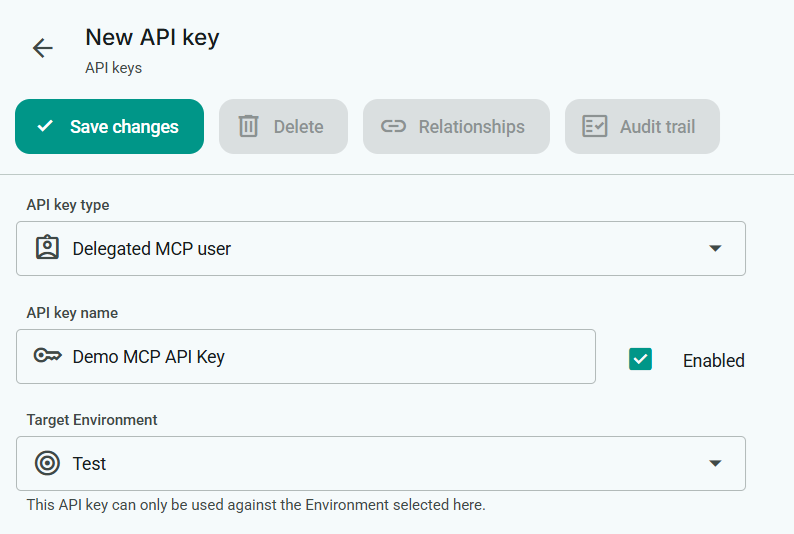
-
Connect your Flowgear MCP Server to a supported AI assistant – Connect to Claude or ChatGPT. Once connected, your Workflow appears as an MCP Tool that the AI assistant can call.
Tips
Workflows need to handle failures - Given that AI assistants are not always reliable and may send imperfect inputs, ensure that your MCP Tool Workflows are designed to handle errors in such a way that they prevent downstream issues.
Schemas for MCP Tool Workflows are generated by Variable Bar property values - If properties are set but no values are provided, the AI assistant may invoke the tool with incorrect inputs because it does not have a detailed schema for what the inputs should look like. Provide explicit values for required inputs. See Enable a Workflow as an MCP tool for more information on how to set up a Workflow as an MCP tool.
MCP support varies by assistant - MCP is growing quickly, but not all AI assistants fully support it. Flowgear's MCP Server setup has been verified to work with Claude and ChatGPT.
MCP uses JSON to communicate - It is best to either use simple types or structured JSON for both inputs and outputs of your MCP Tool Workflow. This maps cleanly to MCP tool calls.
Descriptions can provide extra context - The descriptions on Node Properties and the Workflow itself are surfaced to provide extra context for the AI assistant to better understand how the MCP Tool Workflow can be used.
Tool response size - We have found that some AI assistants have trouble parsing larger responses. Once it exceeds a certain size, it could be truncated. It is best to keep the response sizes at roughly ~200–300 KB of JSON/text. It may not behave as expected when this is exceeded.
Samples
The following MCP Tool Workflows are available for use with the Flowgear MCP Server:
Sage Intacct Queries
Get All Sage Intacct Objects - Retrieves a catalogue of all available Sage Intacct objects that can be queried.
Get Sage Intacct Object Model Definition - Retrieves metadata (field catalogue) for a Sage Intacct object.
Query Sage Intacct Object - Query records from any Sage Intacct object.
Troubleshooting
- "MCP Tool" Options Missing - Flowgear MCP is currently available on all Flowgear plans. If the MCP Tool options are missing from a v1 Runtime Workflow, contact Flowgear Support.
- MCP Tool Workflow doesn't appear in the AI assistant - Confirm that the API Key is "Enabled", your MCP Tool Workflow is in its "Assigned Workflows", and that you're using the correct Environment.
See also
Flowgear MCP Server
Connect Flowgear MCP to Claude
Connect Flowgear MCP to ChatGPT