Local Runtime - Install
This article explains how to install the Flowgear local Cluster on your Windows machine.
Prerequisites
- Windows machine with Administrator privileges.
- Port 443 must be open on the machine.
- A local Cluster must already be created in the Flowgear Console. See Create a local Cluster.
Step 1: Download the Installer
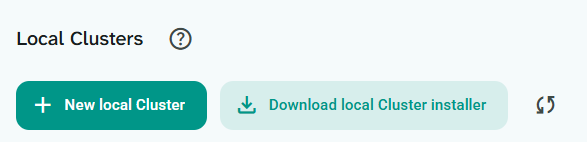
In the Flowgear Console, go to Local Clusters and click Download local Cluster installer.
Step 2: Run the Installer
Run the downloaded installer file. When prompted by Windows UAC, allow the installer to make changes to your machine.
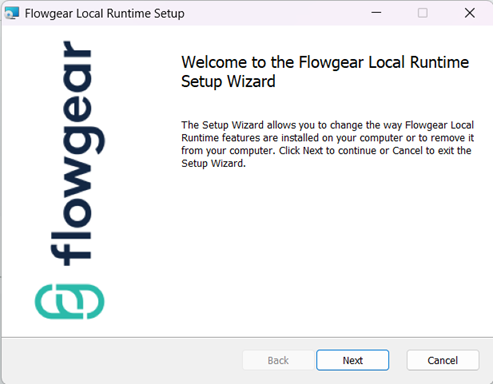
Click Next to proceed through the wizard and complete the installation.
The installer will:
- Install the Flowgear local Cluster application files.
- Register the Flowgear local Runtime Windows service.
- Add a Flowgear local Runtime Setup shortcut to the Start Menu, used to configure the Runtime after installation.
Step 3: Complete Setup
Once installation is complete, you must run the Flowgear Local Runtime Setup tool to configure the Runtime and connect it to your Cluster.