Local Runtime
What is a local Runtime?
A local Runtime allows you to execute Flowgear Workflows entirely within your own network or on-premises environment. Unlike the cloud Cluster, where Workflows are executed on Flowgear's infrastructure, a local Runtime runs the entire Workflow on a machine you control.
This is useful when a Workflow needs access to on-premises resources such as the local file system, internal databases, or network services that are not exposed to the internet — without requiring inbound firewall rules.
Note: In Flowgear v1, DropPoints provided a way to integrate with on-premises data sources. In v2, local Runtimes replace this concept. Rather than routing individual connector calls on-premises, the entire Workflow runs locally.
How it Works
Each Workflow in Flowgear is assigned to a Cluster — either the Cloud Cluster or one of your registered local Clusters. When a Workflow is executed, it runs entirely on the selected Cluster.
Local Clusters can contain multiple nodes, enabling high-availability for on-premises workloads.
When a Workflow calls another Workflow, execution can move between clusters. For example, a cloud Workflow can invoke a local Workflow, and vice versa — whatever makes sense for your use case.
Prerequisites
- Port 443 must be open on the machine hosting the local Runtime.
- A valid Cluster Key, Site Key and Environment Keys (obtained from the Flowgear Console). See Create a local Cluster for further details of where to find the Cluster Key.
- A Windows machine with Administrator privileges.
Selecting a Cluster in a Workflow
Once a local Cluster has been created and is installed and running, you can assign a Workflow to it from the Workflow designer.
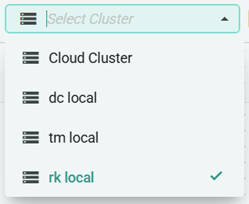
In the Workflow designer toolbar, click the Select Cluster dropdown and choose the desired Cluster. The selected Cluster will be used for all executions of that Workflow.
Tip: The Cloud Cluster is always available. Local Clusters only appear once they have been registered.
Getting Started
Follow the articles below in order to set up a local Runtime from scratch:
- Create a local Cluster — Register a new local Cluster in the Flowgear Console.
- Install a local Cluster — Download and install a local Cluster on your machine.
- Set Up a local Runtime — Run the setup tool to configure and start the local Runtime service.
See also
Create a local Cluster
Install a local Cluster
Set Up a local Runtime